Updating Your Roaming Location in Aircall
Optimising your roaming location in Aircall can enhance call quality by connecting you to the nearest region. Follow these steps to ensure the best experience:
Before you start: Make sure you are using Aircall Workspace on a Mac or Windows device. These instructions are not applicable to the mobile app.
✅Correct version of Aircall Workspace
Verify Your Network Connection First
Before adjusting settings in AirCall, confirm your internet connection is stable, as an unreliable network can lead to dropped calls and audio interruptions.
1. Navigate to https://www.speedtest.net.
2. Click Go to begin a speed test.
3. Review your results: Ideally your
- Download Speed: Should be above 10 Mbps.
- Upload Speed: Should be above 5 Mbps.
- Ping: Lower values are better (ideally under 50 ms).
If your speeds fall below these recommendations or fluctuate, consider:
- Switch Wifi network
- Switching to a wired network connection
- Restarting your router
- Minimising heavy browser activity or streaming during calls
- Mobile hotspot (if that is faster)
Step 1: Access Aircall Settings
- Launch your AirCall application.
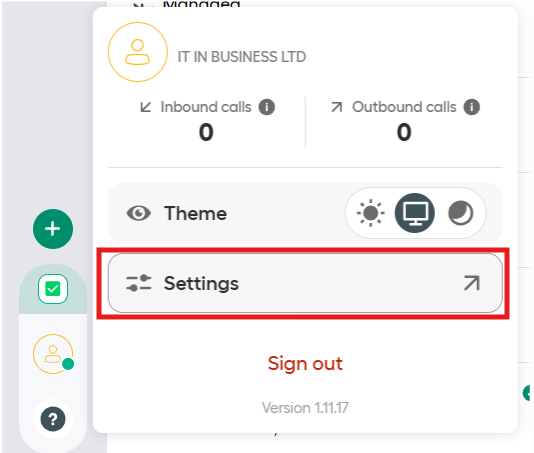
- Click your profile menu in the bottom-left corner.
- Select Settings from the dropdown.
See screenshot below:
Step 2: Open Network Diagnostics
In the Settings menu, locate the left-hand sidebar and select Network Diagnostics.
Step 3: Update Your Roaming Location
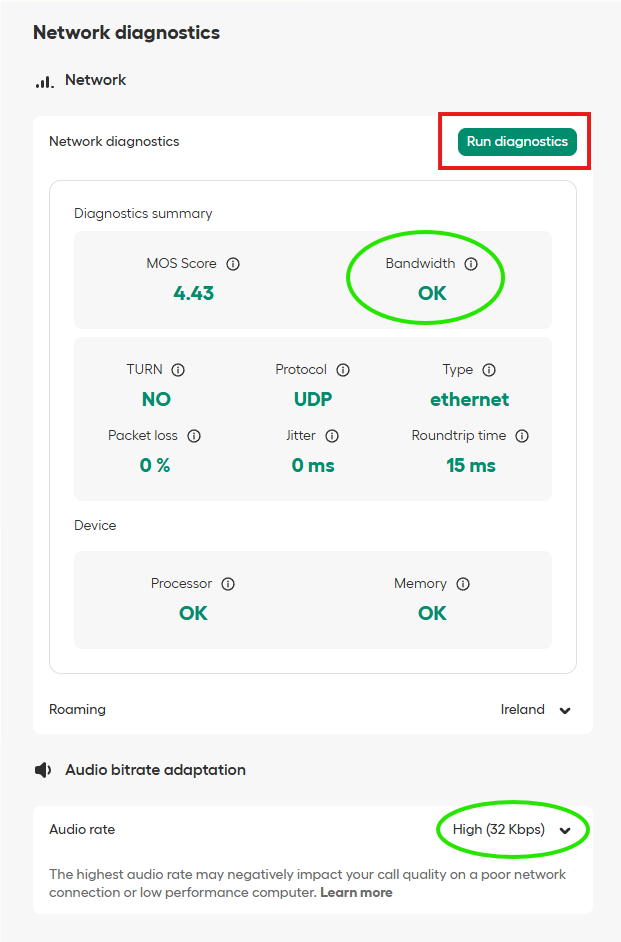
Within Network Diagnostics, find the Roaming option. Click the dropdown menu next to your current location and choose the nearest region from the list (such as Ireland, Frankfurt, or Middle East). Your selection will take effect immediately
See screenshot below:

Step 4: Run Diagnostics and Verify Settings
Click the Run Diagnostics button under Network Diagnostics and allow the test to finish. Check that the Bandwidth status displays OK. If you see a different result, review and repeat steps 1 to 3 above, then run the diagnostics again.
Next, ensure the Audio Rate is set to High for optimal call quality.
(Optional) Additional Troubleshooting Steps:
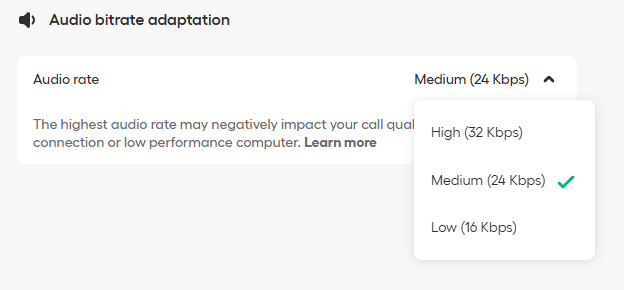
If you notice network speed or Aircall bandwidth showing ‘Poor’ connections, adjust the Audio bitrate from High to Medium or Low to help maintain call quality. Select the appropriate audio rate based on your diagnostics results.